Enlarging search results window
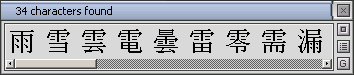
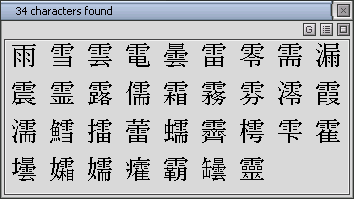
The shortcut key is Ctrl-Spacebar.
Unfolded lists
Display the unfolded list of search results by clicking on the button  in the window above or hitting shortcut key "Enter". In this list, every kanji is displayed with its basic meaning, utility grade and readings (the latter are usually limited to concise format of the respective dictionary entry).
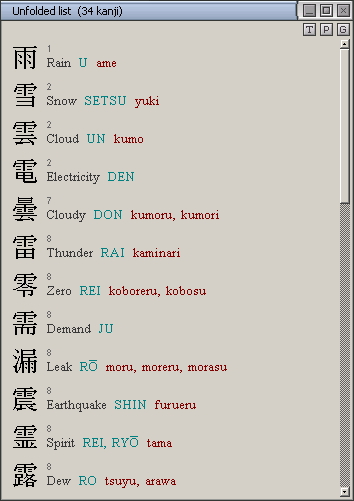
The unfolded list window can be maximized to full screen. Dictionary entries, like in other windows, are available by clicking on kanji images. Button  or shortcut key T switch the window to work in rich text mode enabling you to select and copy data. Button
  prints out the unfolded list in either black-and-white (shortcut Ctrl-P) or color (Ctrl+Shift+P). Rich text mode and printing are discussed below.
Use the option "Show as unfolded list" in the "Search" menu to get the search results in unfolded list format by default.
You can also use unfolded lists to display drill groups and utility grade groups.
Rich text mode
This new mode allows the user to select and copy text, which is impossible in the default text-on-bitmap mode. Text is displayed in the same fonts and colors, but in a slightly simplified layout and without hyperlinks.
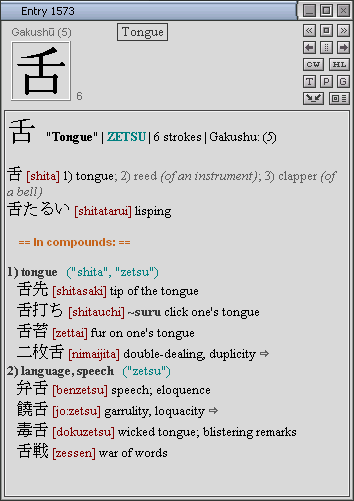
To switch to and from rich text mode, use button , shortcut key T ("Text") or popup menu of the dictionary entry window.
Rich text mode is also provided for unfolded lists and phonetic dictionary.
Printing
Printing of a dictionary entry, unfolded list or phonetic dictionary fragment is in a simplified layout, as in rich text mode: in black-and-white (shortcut Ctrl+P) or in color (Ctrl+Shift+P). To print the entry, press the button and select from a popup menu.
Drill groups
JiShop 4.0 supports custom drill groups which you can fill with the characters you are learning and use in the kanji drill. To open "Drill groups" window, go to "Options" menu in the main window, or press button "Groups" in the drill window, or hit shortcut key Ctrl-G.
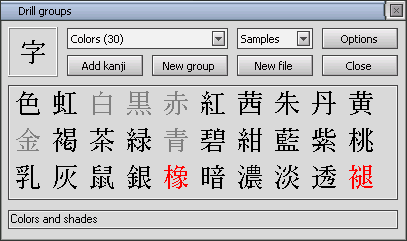
Drill groups are saved and stored in .kdg ("Kanji Drill Groups") files. JiShop now has a samples.kdg file. In this file there are 16 groups where kanji are grouped by topics ("colors", "plants", "relatives", "time", etc.). You can create your own files and add your own groups with optional descriptions. Use "Options" menu to move the groups up and down the file list, delete groups, copy and paste into different files, and display characters from a group as an unfolded list.
To add a new kanji to a group, press button  in the dictionary entry window or shortcut key G. The kanji will appear in the drill groups window. Then, select a group and press "Add kanji" button. Use button in the search results window or unfolded list window to add all the characters from the respective window into a drill group. JiShop will only allow a kanji to be entered into a group once. If you add several kanji, only the new kanji will be added to the group. To erase a kanji ready for adding, just click on it.
To add a different kanji from a dictionary entry, or a kanji from another window (search results, unfolded list, phonetic dictionary) into a drill group, hold down <Alt> and click on this kanji.
To change the position of a kanji in a group, click on it and select menu item "Move by arrows". The kanji will turn blue, and can be moved by using left and right arrow keys. To move a kanji you have just added, press the left arrow key twice. Use the same popup menu to delete a kanji from a group or to show the respective dictionary entry.
While studying, JiShop allows you to mark characters as "easy" (easily recognized, marked in gray) or "difficult" (hard to remember, marked in red). The kanji drill filter contains the options "Only difficult ones" and "Except easy ones". Use these options to improve your memorization of Japanese characters.
Improved graphics
JiShop now supports font smoothing (anti-alias). It is turned on by default for the magnified kanji image and kanji drill. Use the checkbox in the lower part of the magnification window to switch it off.
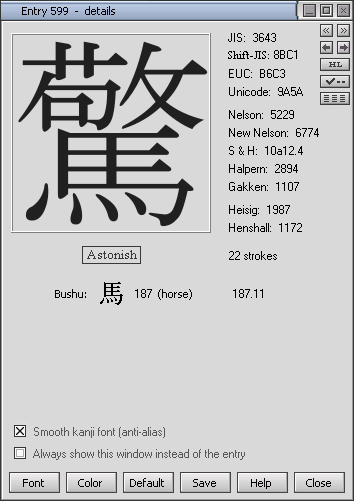
Unwanted anti-alias that sometimes spoiled the dictionary entry picture in previous versions of JiShop is now blocked and does not depend on the settings of Windows.
Custom format of codes and indexes
Press button  in the magnification window (see above) to open a menu in which you can change the representation of the codings (decimal, hexadecimal, etc.) or block displaying certain codes and indexes.
Two codes have been added to the list: Shift-JIS (Windows-932) and EUC (Extended UNIX Code).
Joint search
Select this new setting in the "Search" menu of the main window to simultaneously search by reading or meaning among single kanji AND their compounds. The results will be shown in the window of search results and/or in the phonetic dictionary. The phonetic dictionary also has a "Joint search" setting in the "Options" menu.
"Remove old results" setting
Select this setting in the "Search" menu to close windows of previous search results on every new search.
Click-and-paste function
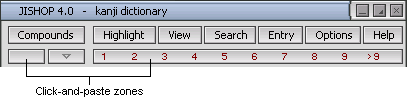
Use click-and-paste option to paste kanji or Japanese words from the clipboard. When this option is on, instead of pressing Ctrl-V or Shift-Ins you can simply click on one of the two sensitive zones. The first sensitive zone is the panel with numbers above the table of radicals. The second zone is the upper navigation arrow panel when the table is scrolled up and the arrow is invisible. By default, click-and-paste option is on. To switch it off, use the main menu: "View > Column numbers > Click-and-paste".
Highlighting minor meanings of compound words
Minor meanings of single-kanji words are shown by default in gray. This approach is now also applied to compound words:

New dictionary data
Since 14.09.2007, 300 kanji entries have been edited, including:
- all characters under the key radical "grass" (number 140, entries 5199-5354)
- all characters from Jack Halpern's dictionary (NJECD) which were not previously included in JISHOP
- 50+ additional characters
See also new features in version 3.0
See also new features in version 5.0