| - Search by traditional keys |
| - Magnifying kanji |
| - Codes, indexes and keys |
| - Concise entry format |
| - Direct kana input |
| - Kanji drill |
| - New dictionary data |
Search by traditional keys


Search by traditional keys ("bushu") is now added to JiShop 3.0 as an extra option.
It is switched off by default. To turn it on, go to Search> Search by traditional keys> Enabled
as option (or Set by default).
If the first selected radical belongs to one of the 214 traditional key radicals,a key will appear
in the cell underneath it. The color gray means the key is currently deactivated, and the search will
continue in its usual mode. To activate the key, click on it, and the key will turn blue. The remaining
cells can also be used for selection, but only the radical in the top-left cell will be treated as the
key radical.
Search by traditional keys is based on the system of character indexation used in classical dictionaries.
Born in the early 18th century in China, this system was adopted by Japan and still dominates Japanese
lexicography. Some foreign character dictionaries also use this system, for example, the famous kanji
dictionary by Andrew Nelson. Using this system, a certain element called "key" ("bushu") is specified
for every kanji. 214 keys form 214 sections of the dictionary. Inside each section, characters are
arranged according to their stroke number. To find a kanji in such a dictionary, you need to determine
its key and count the total number of strokes in its remaining elements.
Nowadays, the classical search system seems far from perfect. The selection of keys and some of the
conventional ways of their specification often incur criticism. Many recent dictionaries (including
JiShop) offer alternative methods. However, good knowledge of this system is still an important part
of academic training. In particular, it gives you the option of using Japanese-Japanese dictionaries.
Using a traditional key in JiShop often narrows down the search results. When the key is a popular
semantic component ("bird", "insect", "metal", etc.), most of the characters will belong to the same
semantic group. This can be helpful when you use kanji drill.
Use "Magnify and show details" option to find out which element of a kanji is considered to
be its key radical. Open "Radical info" window to see if a radical from the menu can function as a
key. Select Highlight> By position> Bushu to view 198 of the 214 key radicals highlighted.
Magnifying kanji
Use this feature to see kanji on a magnified scale. This is especially helpful
when the character has many strokes and looks blurred. To open the magnification window,
use button  ,
shortcut key M or popup menu of the dictionary entry.
,
shortcut key M or popup menu of the dictionary entry.
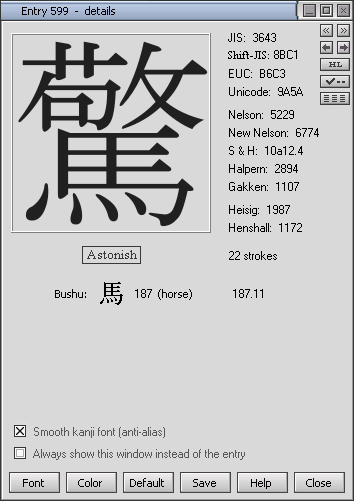
To magnify a kanji, your computer should support unicode and have Japanese fonts installed. Otherwise the kanji will be shown as a bitmap 48x48.
Use "Font" and "Color" buttons to change the appearance of the magnified kanji. Use "Save" button to save the kanji images in BMP files.
Codes, indexes and keys
In the magnification window (see above) you also can see some extra information about the kanji:
| JIS | hexadecimal JIS X 0208-1990 coding |
| KUTEN | tabular JIS X 0208-1990 coding |
| Unicode | hexadecimal unicode |
| Nelson | index in "Modern Reader's Japanese-English Character Dictionary" edited by Andrew Nelson |
| New Nelson | index in "New Nelson Japanese-English Character Dictionary" edited by John Haig |
| S-H | index in "The Kanji Dictionary" by Mark Spahn and Wolfgang Hadamitzky |
| Halpern | index in "New Japanese-English Character Dictionary" edited by Jack Halpern |
| Gakken | index in "A New Dictionary of Kanji Usage" |
| Heisig | index in "Remembering The Kanji" by James Heisig |
| Henshall | index in "A Guide To Remembering Japanese Characters" by Kenneth G.Henshall |
Under the magnified kanji, its traditional key ("bushu") is given, along with its index and name (187, "horse" in this example). To the right of the bushu, you can see the code of the kanji in a classical dictionary like Nelson. This code contains bushu index and, after a point, the total number of strokes in the remaining components (187.11 in this example). The bushu image is a hyperlink; click it to open "Radical Info". For some characters, more than one bushu can be given, meaning that different dictionaries can specify different keys.
Concise dictionary format
Concise format is provided from version 3.0 for nearly all dictionary entries. It differs from the full format in the same way a pocket dictionary differs from an academic one. In concise format, only the most important readings, meanings and compounds are left in the entry, so that you can quickly look through it and get general knowledge about the kanji without sinking in details.
To switch to concise format and back, use button
 , shortcut key F
or popup menu of the dictionary entry
, shortcut key F
or popup menu of the dictionary entry
Direct kana input

From version 3.0, if your computer supports unicode and Japanese fonts, you can input the readings of kanji and words in hiragana or katakana. You can also enter kanji or their compounds into the "Reading" box (this is the same as copying them from the clipboard).
Kanji drill
If you are studying Japanese, kanji drill will help you review the characters you have learned and memorize them better. Kanji from a certain set appear in a random order, allowing you to check their meanings and readings. You can also reverse the order by selecting "Data => Kanji" mode, to guess kanji by their meanings/readings.
Open kanji drill by a command in the main menu ("Options > Kanji drill") or use shortcut key Ctrl-D.
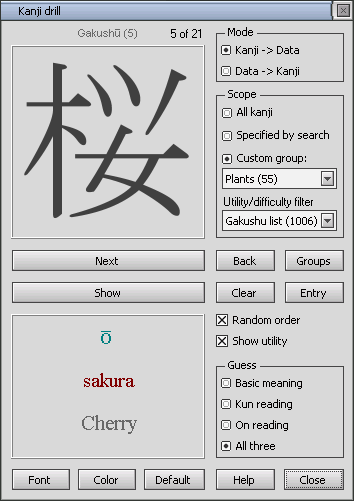
In "Kanji => Data" mode, choose your first parameter in the "Guess" box: basic meaning, Japanese (kun) reading, Chinese (on) reading or all three. Each time you press the "Show" button, it will run through the next parameter. E.g. select "kun reading", then each click on "Show" will display the following:
- on 1st click: kun reading
- on 2nd click: on reading
- on 3rd click: basic meaning
- on 4th click: all three (always comes last)
The readings and meanings shown in the drill are usually limited by the concise format of dictionary entries.
Use the following shortcut keys for convenience:Right arrow: "Next".
Left arrow: "Back".
Down and up arrows: "Show".
New dictionary data
Around 200 fully edited dictionary entries have been added to the database. First priority was given to more useful kanji with clear and concrete meanings, including all the characters under the key radical "disease" (no.104). Kanji compounds have been continuously added and translated. After July 15th, there are no more compound words which are marked as "to be translated soon".
See also new features in version 4.0