JiShop/iPhone has a tab-based interface. In the current version, there are the following tabs:
Since v.3.00, the drill is implemented as a modal screen, not as a separate tab. To invoke, tap the "Drill" button on the main tab.
In addition, JiShop has a section in system settings.
The Kanji Search tab is used for searching in the kanji database.
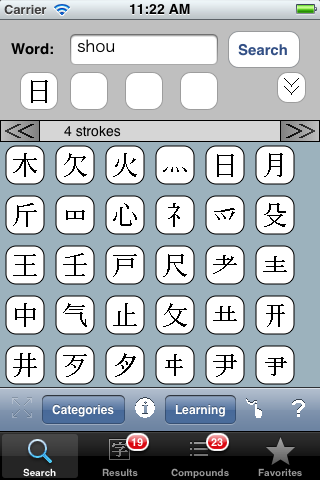
The search parameters are specified in the top part of the window:
- In the Word box, you can provide the reading (onyomi or kunyomi) of the kanji you're looking for, either in rōmaji or in kana. If you know the Japanese spelling of the word, you can provide it there as-is.
- The four cells in the second row contain the selected radicals.
- The Search button runs the search by the specified parameters (reading, radicals, etc.).
The lower part of the main window is occupied by the radical table. From version 2.00 on, it can run in one of the two modes:
- In Wide mode, the table is divided into pages. A page contains all radicals with the same stroke count. You can scroll between pages by means of the arrow buttons in the table header. The traditional iPhone-style panning gesture only performs vertical scrolling within a page.
- In the Classic mode, the structure of the table is practically identical to that of JiShop/Windows. Radicals are arranged in columns by stroke count, except for the table bottom. Stroke count is displayed in the table header.
Clicking on a radical in the table selects it and places it into a free cell; clicking an occupied cell clears it.
If you tap and hold a radical in the table, the table will collapse - all radicals will disappear, except for ones that are related to the one tapped. In JiShop/PC you can get the same result by right-clicking a radical twice. The relation between radicals is defined loosely; two radicals are considered related if:
- They look alike
- One contains the other
- One historically evolved from the other
- One is an abbreviation of the other
- They often go together
To restore the full table, click the  button in the toolbar.
The "Categories" button also performs a table collapse, but it lets you collapse a table by a semantic or graphic radical category - top radicals, enclosing radicals, people, animals, katakana characters, etc.
The  button switches the table into the radical info mode.
In this mode, clicking on a radical would bring up a panel with a brief note about a radical - usage, placement, phonetic value,
similar or related radicals:
button switches the table into the radical info mode.
In this mode, clicking on a radical would bring up a panel with a brief note about a radical - usage, placement, phonetic value,
similar or related radicals:
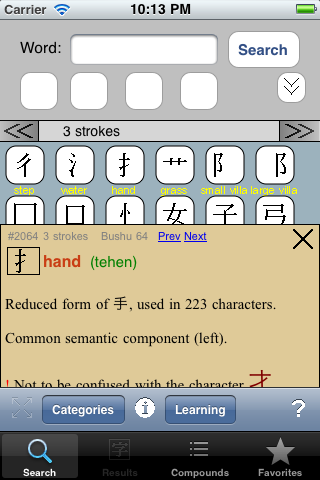
To leave the info mode, tap the button again.
JiShop also supports searching by word meaning (i.e. English translation).
To use it, you have to click the  Details button:
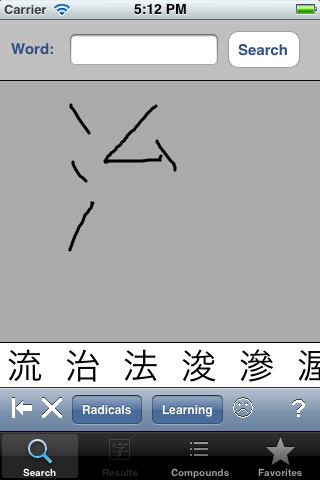
To change even more search parameters, click the "More" button:
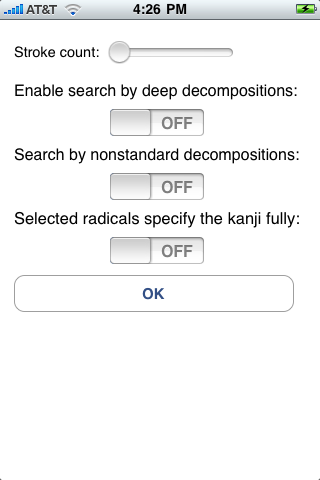
The meaning of those parameters is:
- The "Stroke count" box lets you limit your search to kanji with the specified number of strokes. It's handy if you're used to traditional Chinese character dictionaries.
- Checking the "Deep decompositions" box turns on searching by deep decomposition of kanji into radicals. It's useful when you're looking by primitive strokes. For example, if you're looking for the "dot" radical, you won't normally find the "dog" kanji. But with deep decomposition enabled, you will.
- Checking the "Nonstandard decompositions" box makes JiShop consider non-standard decompositions of kanji into radicals. Some popular misconceptions and radical misidentifications are covered by this option.
- Checking the "Full spec" box makes the search only look for characters that consist precisely of the selected radicals. Without this check, radical search finds all kanji that contain the selected radicals and maybe other radicals as well.
- Dismiss the box by clicking the OK button.
When you click "Search", JiShop first goes through its kanji list. The matching kanji are displayed on the Results tab. If not a single kanji was found, and either meaning or reading was specified, the app searches the compound words dictionary for the same reading/meaning, and displays the results on the Compounds tab.
The reading can be specified either in rōmaji , or in hiragana, or in katakana. You can specify long vowels either with a colon, or as "ou/uu".
To search for words by their fragments, add dots as wildcards:
kari.. => kari, kariru...
..kari => kari, hikari, kakari...
..kari.. => kari, kariru, hikari, hakarigoto...
ka..ri => kari, kawari, kagiri, kaori...
You can also provide the Japanese word directly in the "Word" box.
The Results tab contains the list of the found kanji and the dictionary entry for one of those.
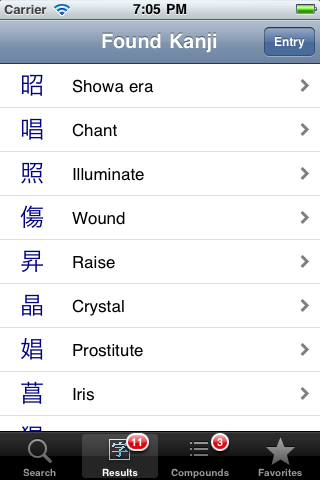
You can select a kanji in the list by tapping on its line. If only one kanji is found, there's no list. The name of the kanji in the list is its most basic meaning; it does not necessarily cover the full range of possible translations. To see all possible translations, navigate to the dictionary entry of the kanji.
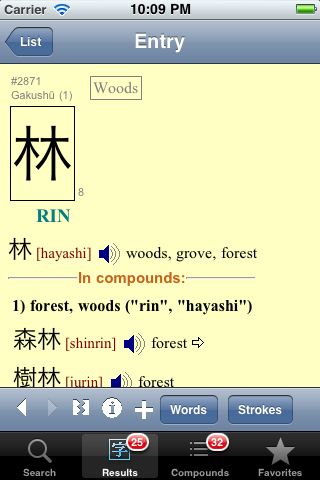
The layout of the dictionary entry is identical to that of the JiShop/PC; you can find the description in the JiShop/PC's manual. All kanji in the entry are hyperlinks - if you tap a kanji with your finger, the kanji's own dictionary entry will be displayed. Clicking the large kanji image will activate the Compounds tab and place the kanji into a search cell.
From v.3.20, JiShop supports outputing Japanese pronunciation of words as spoken voice.
To listen to a word, press on the  icon
next to it.
icon
next to it.
Text-to-speech conversion was provided by the free Microsoft Translator service. So this function requires an active Internet connection. Also, sometimes the Japanese spelling of the word does not uniquely identify its pronunciation because of the existence of homographs (English example: "read" as in "I read every day" vs. "read" as in "I have read"). In such cases, it's up to the Microsoft Translator which pronunciation to use.
JiShop/iPhone supports retrieval and display of online
Stroke Order Diagrams (SODs), like the Strokes plugin does for JiShop/PC.
To see the SOD, tap the
 button. The SODs are normally taken from the Internet,
so for this command you must have an active connection.
button. The SODs are normally taken from the Internet,
so for this command you must have an active connection.
To use SODs while disconnected, you need to download them all first. For that, tap the "Offline" button. This will cause JiShop to download and store locally all known SODs. The download process takes place in the background; you may work with the dictionary as usual. Revisit the Offline button to check the progress.
The command bar of the Results tab contains the following commands:
 Displays the previous kanji (like Back in a Web browser)
 Displays the next kanji (like Forward in a Web browser)
 Decompose; activates the radical table, with only radicals that comprise the current kanji shown
- Displays the window with auxillary information about the kanji
- its bushu, code numbers, and lookup references for some notable dictionaries out there
 Adds the current kanji to the Favorites list
- Words - activates the Compounds tab, places the current kanji into a search box
- Strokes - brings up the SOD of the kanji, if one exists.
The Compounds tab is used for searching in the compound words dictionary.
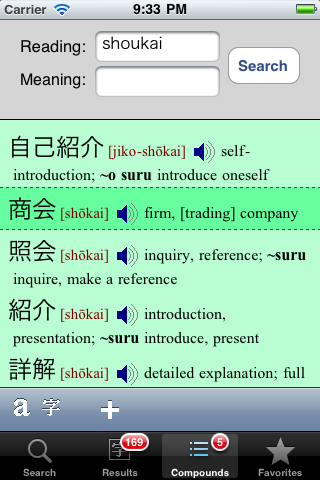
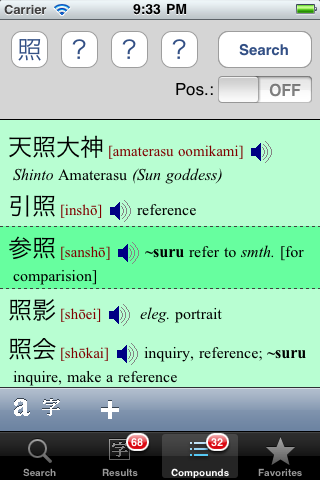
Two modes of search are supported: search by reading/meaning and search by kanji. You can switch between modes either by clicking buttons on the bottom toolbar, or by scrolling the search panel vertically.
You can specify the reading in rōmaji, hiragana, or katakana, just like in the main window.
In the search by kanji mode, you can select up to four kanji to search for. The "Position" checkbox determines whether the kanji's position in the compound word will be taken into account during search. To place a kanji into a search cell, you have to locate it in the Results tab, and click either the large kanji image, or the "dictionary" button in the bottom toolbar.
A free kanji cell can have one of the two values - "?" or "-". You can cycle between those by clicking on the cell. The question mark means that on this position, any character would fit. The dash means that this position must be blank in the compound word. In other words, if you search for AB--, the system will find all words with precisely two characters - A and B (in this order), maybe with some hiragana in the middle. If you search for AB??, then the words of 3 or more kanji will be found as well, as long as the first kanji are AB. The "-" sign is taken into account both in position-aware and in position-independent search mode.
The Search button starts the search. The words, once found, are displayed below. The output format is identical to that of JiShop/PC. All kanji in the compound words are hyperlinks - you can bring up the kanji's dictionary entry by clicking on it.
The Favorites
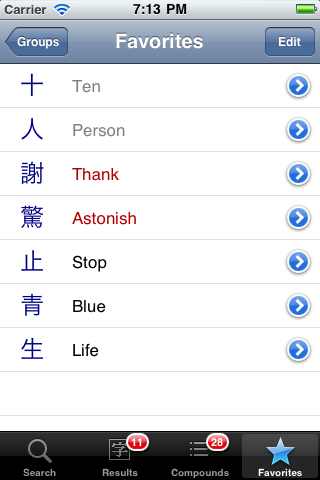
Like the desktop version, JiShop/iPhone lets you compose arbitrary lists of kanji, so that you can come back to them anytime. The kanji are stored in named groups under the Favorites tab. At any moment, JiShop has one active group.
By default, the Favorites tab displays the list of kanji in the current group. By tapping on the kanji row
you can bring up its dictionary entry. By tapping the  you can
mark the kanji as easy or hard. To delete or rearrange the kanji in the favorites, use the "Edit" button in the top right corner.
you can
mark the kanji as easy or hard. To delete or rearrange the kanji in the favorites, use the "Edit" button in the top right corner.
By clicking on the "Groups" button in the top left corner, you can edit the list of favorite kanji groups.
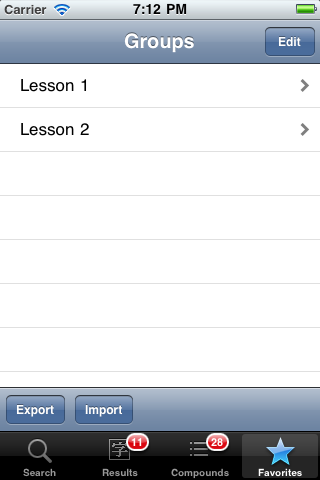
In that list, you can edit, delete, or rearrange the groups by tapping the "Edit" button. The "Export" button in the bottom bar lets you export your favorite kanji lists to a different flavor of JiShop on the same phone - from Concise to Advanced, for example. With the in-place upgrade of v.3.00, this feature is almost pointless.
The Import button lets you download preset groups of kanji. This feature requires an Internet connection. The groups are arranged into categories; the initial import screen displays a list of those. Tapping a category reveels the list of preset groups in it. The list of categories and groups may evolve over time.
If you can think of a particular kanji set or sets that the general public may be interested in, please don't hesitate to contact us.
Since v. 3.50, JiShop supports copying favorite kanji and words between devices, including, potentially, ones that run on different platforms (Android, Windows). Three vehicles are supported - your personal file storage at Dropbox.com, local (WiFi) networking, and Bluetooth. Importing to/from JiShop/Android is supported since v. 1.90. File exchange support for JiShop/Window is planned.
Facorite import is wholesale - the received file completely displaces currently stored favorites.
On its first run, the Export to/Import from Dropbox command flashes a logon window. You're expected to provide a username and a password for your Dropbox account; if none exists, you can create it right there. Then you're asked to grant access to your files to JiShop. Once you grant access, it remains in place forever, unless explicitly revoked. The exported file is stored in the "Jishop" folder.
Export to a nearby device should be initiated on the source device. The respective menu command starts searching for running instances of JiShop on Bluetooth and on the local network; for mobile devices this means on the same WiFi. So in order for export to work, JiShop must be running on the destination device as well.
Tapping on a device name starts the export operation. Once the file is transferred, the destination device flashes a window, asking whether you want to import the received groups. Tap on "Yes" to proceed.
Exporting over local networks is supported on both iOS and Android and the protocol is the same. Bluetooth file exchange only works with other iOS devices.
The drill screen provides a multiple-choice self-test in kana or kanji. First thing you see is the drill type selection: hiragana, katakana, or kanji.
In case of kana drill, you then end up on the drill screen. JiShop presents a kana character, lets you choose its reading from a list of four.
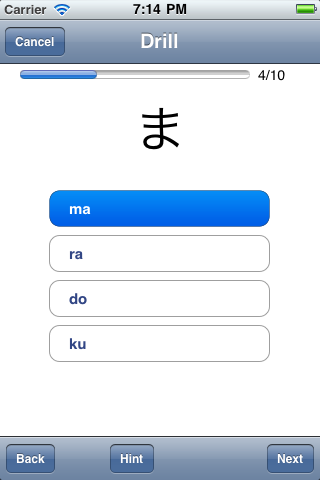
Making a choice advances the test to the next character, and so on. At the last character of the test, the "Done" button becomes available. Tapping it displays the test results screen with the percentage score.
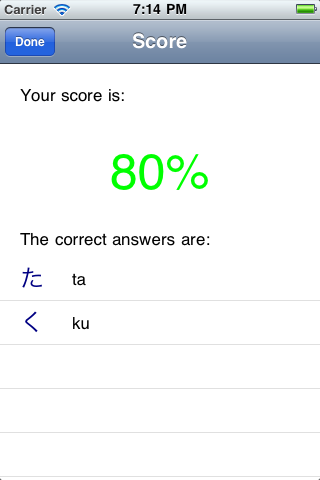
If you choose the kanji drill, you'll see the list of your favorite kanji groups. By default, the only groups you have are you custom ones, but you have the option of importing more from the JiShop website. Once you choose the group, the screen presents the sane sequence of multiple-choice questions. The nature of the answer is determined by JiShop settings; by default, it's the basic meaning, but you have an option of placing kun'yomi or on'yomi there.
The favorite groups can be quite large (espec. the preset ones); running a test over every single kanji would be frustrating. So the defaut settings involve a limitation of the maximum number of kanji in the drill set. You can change or remove the limit in the settings. Same goes for the kana drill.
You have an option of advancing to the next question without making a selection by tapping the "Next" button. However, until an answer is provided for every single question, the "Done" button on the final quastion won't be available. Use the "Back"/"Next" buttons to review the test. The "Hint" button reveals the right answer by changing its color.
JiShop maintains a section in the iPhone/iPad's system settings app. The following settings are supported:
- General
- Radical table mode - Classic or Wide. Wide mode is the mode where you only see radicals of a single stroke count at a time. This is the default mode on most mobile devices. In the classic mode, radicals are arranged in columns by stroke count. This is how desktop JiShop works.
- Deep decomposition - same as the Deep decomposition on the kanji search tab
- Nonstd decomposition - same as the Non-standard decomposition on the kanji search tab
- Transcription - these settings let you change the way JiShop renders Japanese text
- Kun'yomi and words - governs how are words rendered (kana/r&omacron;maji)
- On'yomi - same for on-readings of kanji
- Ch&omacron;on in on'yomi - if turned on, long O and U in on-readings will be rendered with a long horizontal dash, like in loadwords. Otherwise, the U kana character will be used.
- Search scope - this setting lets you specify the subset of kanji that the searches will be run against. This setting is only available in in JiShop Advanced.
- Kana drill
- Composite kana - enables two-character combinations like kya, sha etc.
- Drill size limit - determines the # of kana characters per a single drill session
- Kanji drill
- Drill size limit - determines the # of kana characters per a single drill session; if there are more in the chosen group, a selection is made at random
- Guess what - lets you choose the content of the guess buttons, basic meaning, kun'yomi, or on'yomi
- Filter - lets you limit the characters in the drill set to the ones marked as "Hard" or to the ones not marked as "Easy"